Three steps to install Windows
Follow the steps in order. Skip any notices you don't encounter.
- 01
Keep the downloaded installer
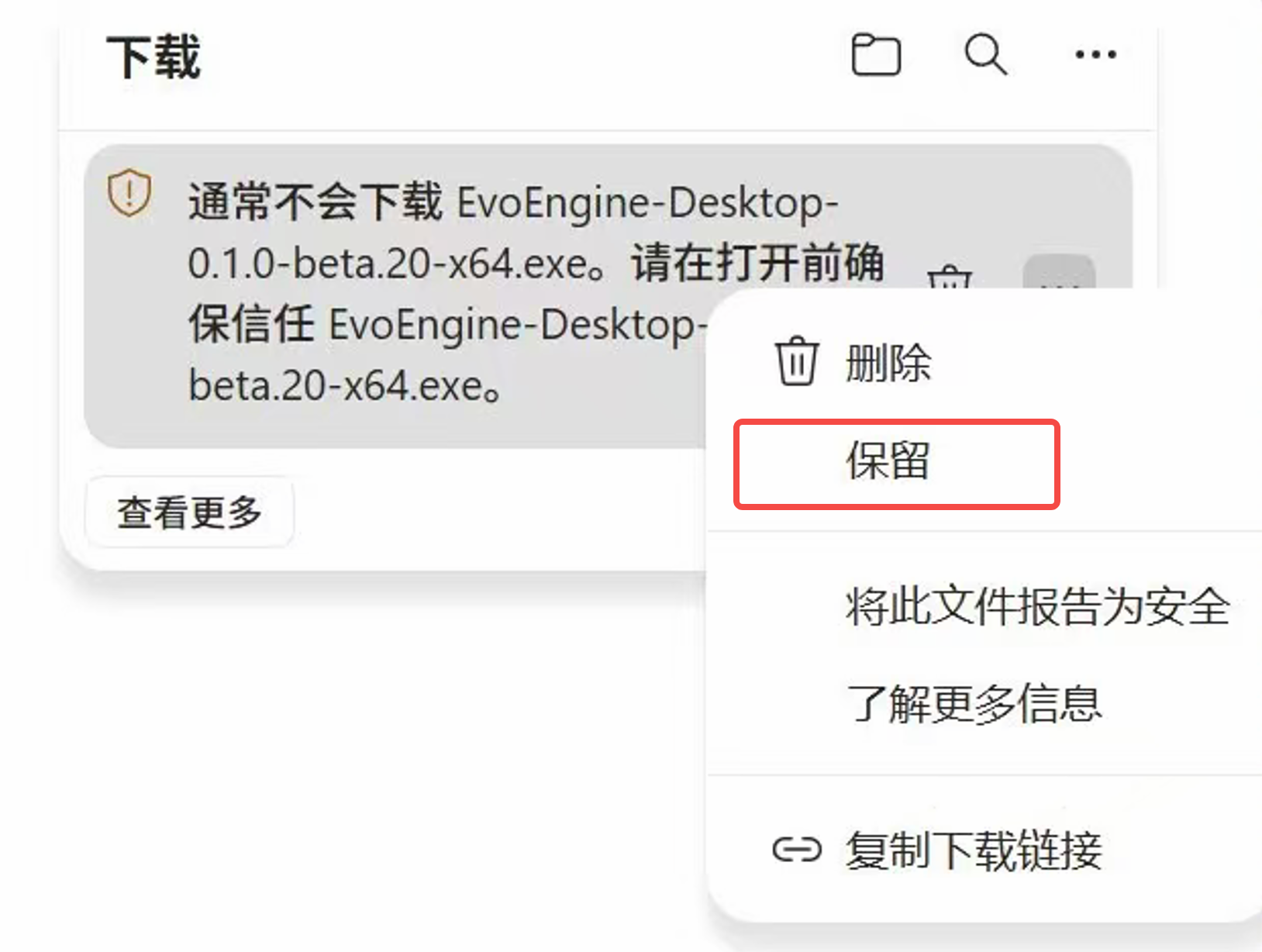
Open your browser's downloads list and find the EvoEngine .exe file.
If Edge says the file isn't commonly downloaded, first verify it came from proteinx.bio , then open the file's menu: “…” → “Keep” → “Show more” → “Keep anyway”. Wait for the download to finish.
Read Microsoft's Edge guidance - 02
Open the installer
Double-click the downloaded .exe file.
If you see “Windows protected your PC” and have verified the source, select “More info”, then “Run anyway”.
If this notice doesn't appear, continue with installation.
Read Microsoft's Windows guidance - 03
Finish installation and start researching
Follow the installer instructions. If Windows asks permission to change your device, verify the application name and source before deciding whether to allow it.
After installation, open EvoEngine Desktopfrom the Start menu or desktop, sign in, and enter your workspace.

Make sure your installer comes from proteinx.bio. Unsigned, unnotarized, or unfamiliar apps may trigger notices. Continue only if you have verified the source and trust the app.
Understand the notice before continuing
Still have questions?
Here are common situations
and the next steps to take.
Chrome blocked the download. What should I do?
Open Chrome's downloads list and inspect the notice. If it only says the file is uncommon or unverified, and you have verified the official source, use the current version's Keep or continue option. If it reports a virus or malware, stop installing and contact the team.
Read Chrome's official guidanceCan't find “Run anyway”?
Windows Smart App Control or organization policies may block unsigned applications without a per-app exception. Contact the team or device administrator. A web version may be an alternative where available.
Learn about Smart App ControlA virus or malware warning appears?
These warnings differ from an unknown developer or uncommon download notice. Stop installation and send the warning to our team for review. Do not disable system protections or run terminal unlock commands.
Ready for your next research project.
If installation raises another issue, we're here to help.